Goal
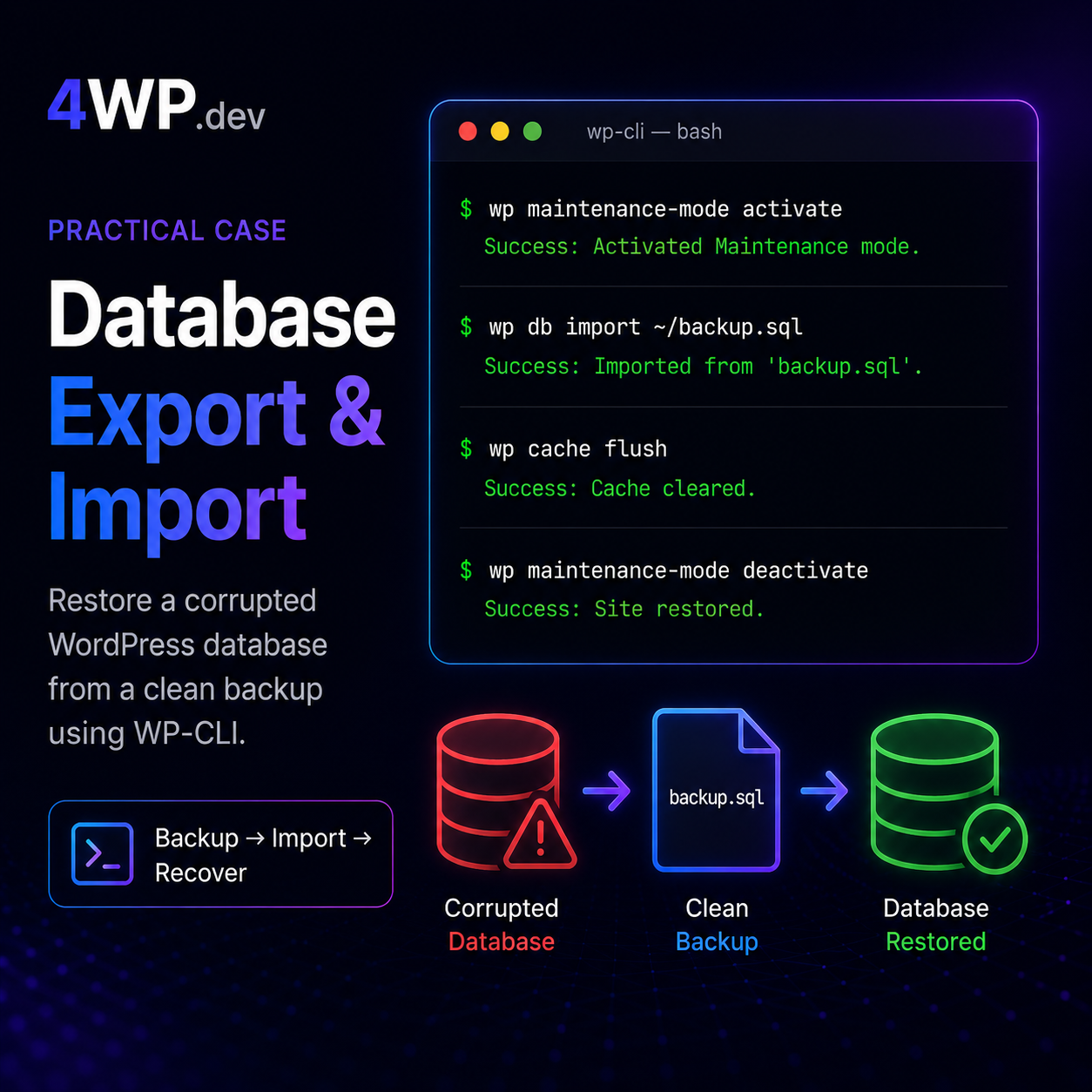
Safely restore a WordPress database from a backup dump — with maintenance mode protecting visitors, the corrupted state preserved for debugging, schema updated to match current code, and cache cleared before going live.
Steps
1. Enable maintenance mode
A database import replaces every table. If a visitor loads a page between the drop and the import, they get a blank page or a PHP fatal. Maintenance mode puts visitors behind a clean holding screen for the duration.
WordPress writes a .maintenance file to the site root. WP-CLI removes it when you run maintenance-mode deactivate at the end.
wp maintenance-mode activate2. Export the corrupted database
Before overwriting the corrupted database, export it. Even broken data is useful — it shows exactly what the plugin changed, which helps identify the root cause and prevents the same corruption from happening again.
Name it clearly (corrupted-state.sql) so it is not confused with the clean backup. Keep it on the server for at least a few days after the restore.
wp db export corrupted-state.sql3. Import the clean backup
wp db import drops the existing database content and imports the dump file. It does not merge — it replaces. This is what makes the export in step 2 important: anything not in the backup is gone after this step.
The import reads a .sql file and executes it against the current database credentials defined in wp-config.php. No credentials need to be passed on the command line.
wp db import ~/backup.sql4. Update the database schema
The backup may have been taken before a WordPress core update or a plugin update that changed the database table structure. Running update-db applies any pending schema migrations against the restored data.
This step is safe to run even if no schema changes are needed — WP-CLI checks the current version and exits cleanly if the schema is already current.
wp core update-db5. Flush the object cache
The object cache (Redis, Memcached, or the built-in transient store) may hold values from the corrupted database state. Even though the database is now clean, the cache can serve corrupted data to PHP until it is cleared.
This applies to the server-side object cache only. If the site uses a page cache plugin (WP Rocket, W3TC), purge that separately after going live.
wp cache flush6. Disable maintenance mode
The database is restored, schema is current, cache is clean. Remove the maintenance lock and let traffic in.
After going live, deactivate or uninstall the plugin that caused the corruption. Run wp plugin list to see which plugins are active and identify the offender.
wp maintenance-mode deactivateCommon mistakes
- Not enabling maintenance mode before the import — visitors who load a page between the database drop and the import completion get a fatal error or blank screen.
- Importing a backup without checking if it is from the correct environment — importing a local development dump into production with localhost URLs breaks the entire site.
- Skipping
wp core update-dbafter import — the restored database schema may be behind the current WordPress or plugin code, causing subtle admin and frontend bugs. - Not flushing the object cache after import — Redis or Memcached caches survive a database import and can serve stale or corrupted values for minutes after the restore.
- Overwriting the corrupted database state without exporting it first — losing the corrupted data makes it impossible to understand what went wrong and prevent recurrence.
- Forgetting to deactivate maintenance mode after the restore — visitors stay locked out indefinitely.
Real cases
Does wp db import drop the existing database before importing?
Yes. WP-CLI runs the .sql file against the current database, which typically begins with DROP TABLE IF EXISTS statements for each table. The result is a clean replacement of the existing data, not a merge. This is why the export step before import is critical — anything not in the backup file will not exist after the import.
What credentials does wp db import use?
WP-CLI reads the database host, name, user, and password directly from wp-config.php. You do not need to pass credentials on the command line. This is why wp db import backup.sql works without any additional flags.
Why run wp core update-db after importing a backup?
The backup captures the database state at the time it was made. If WordPress core or any plugin was updated after that backup, the current PHP code expects a newer schema. wp core update-db applies any pending ALTER TABLE and schema changes that the code expects but the restored database does not yet have.
What if the import fails halfway through?
The database may be in a partially restored state. First, check the error message — it usually points to a specific table or SQL statement. If the import file is valid, try running it again (WP-CLI’s import is generally idempotent for standard WordPress dumps because each table is dropped before recreating). If the file itself is corrupted, you need an earlier backup.
How do I know the backup I am importing is from the right environment?
Run grep 'siteurl' backup.sql | head -5 before importing. The siteurl value in the dump shows which site and domain the backup came from. If it shows a localhost or staging URL, you will need to run wp search-replace after the import to fix all domain references.
What is the difference between wp db export and a manual mysqldump?
wp db export is a thin wrapper around mysqldump that reads credentials from wp-config.php automatically. The resulting .sql file is compatible with wp db import and standard MySQL import tools. The main advantage over raw mysqldump is that you do not need to manually pass host, user, password, and database name on the command line.