Goal
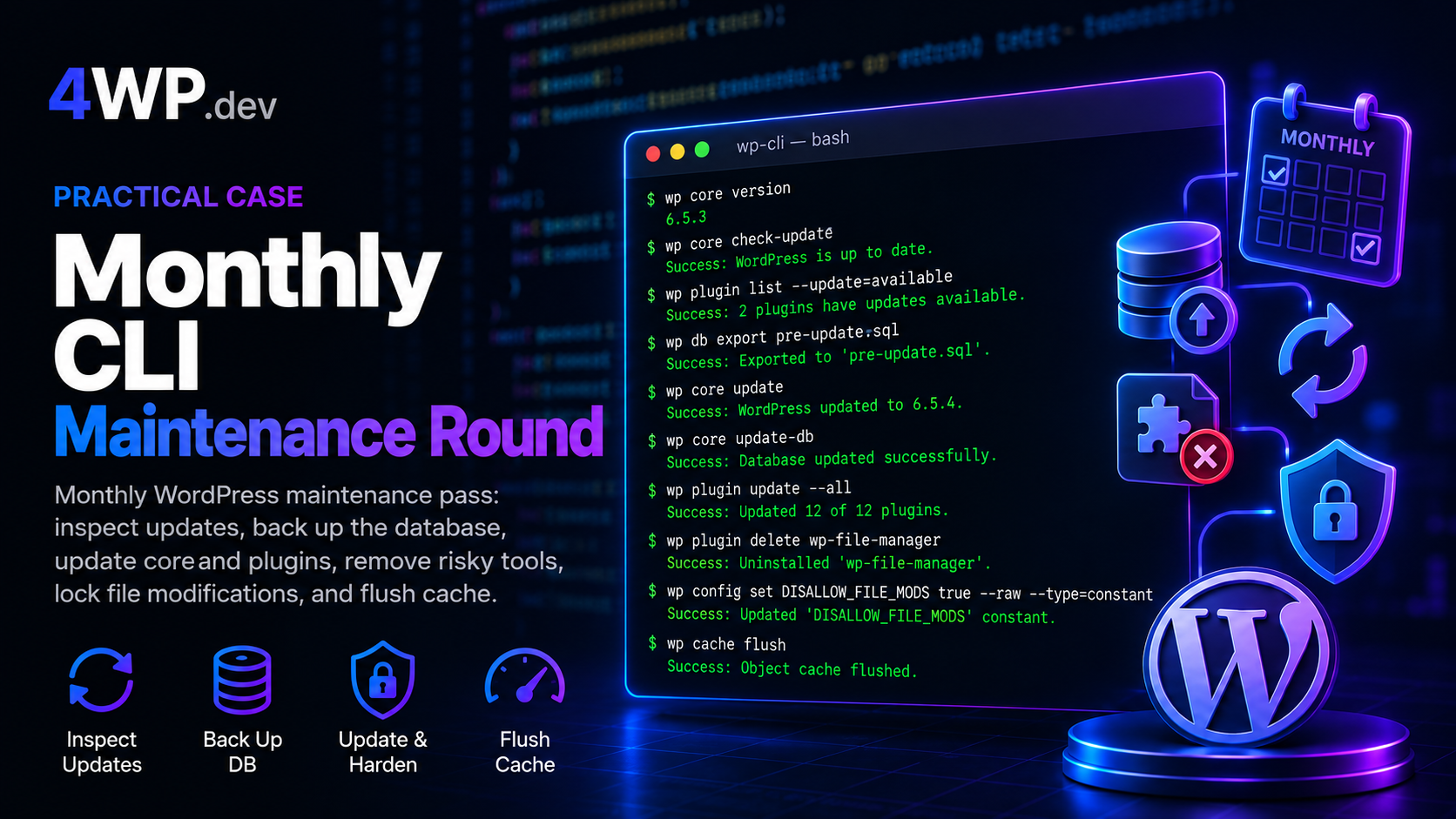
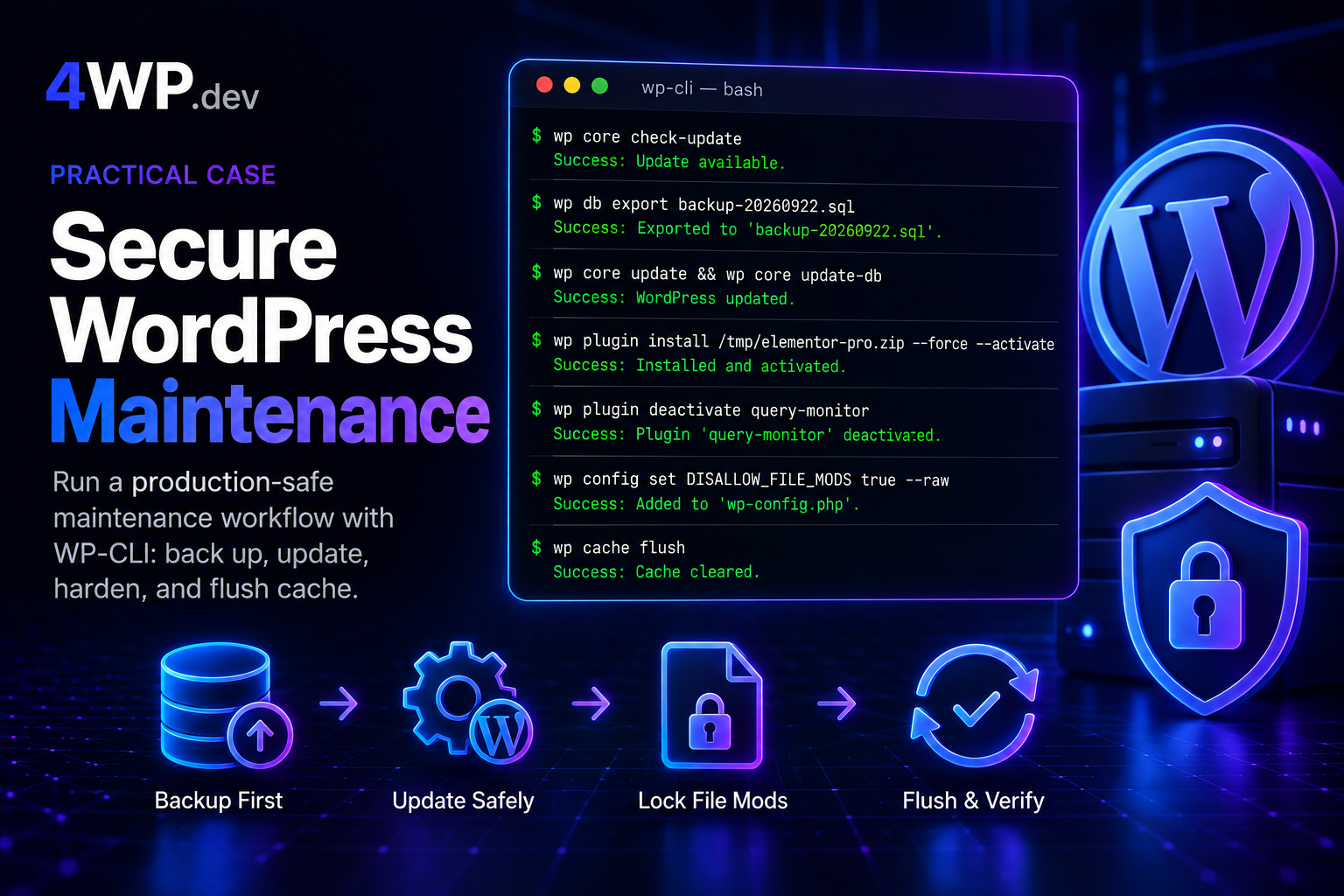
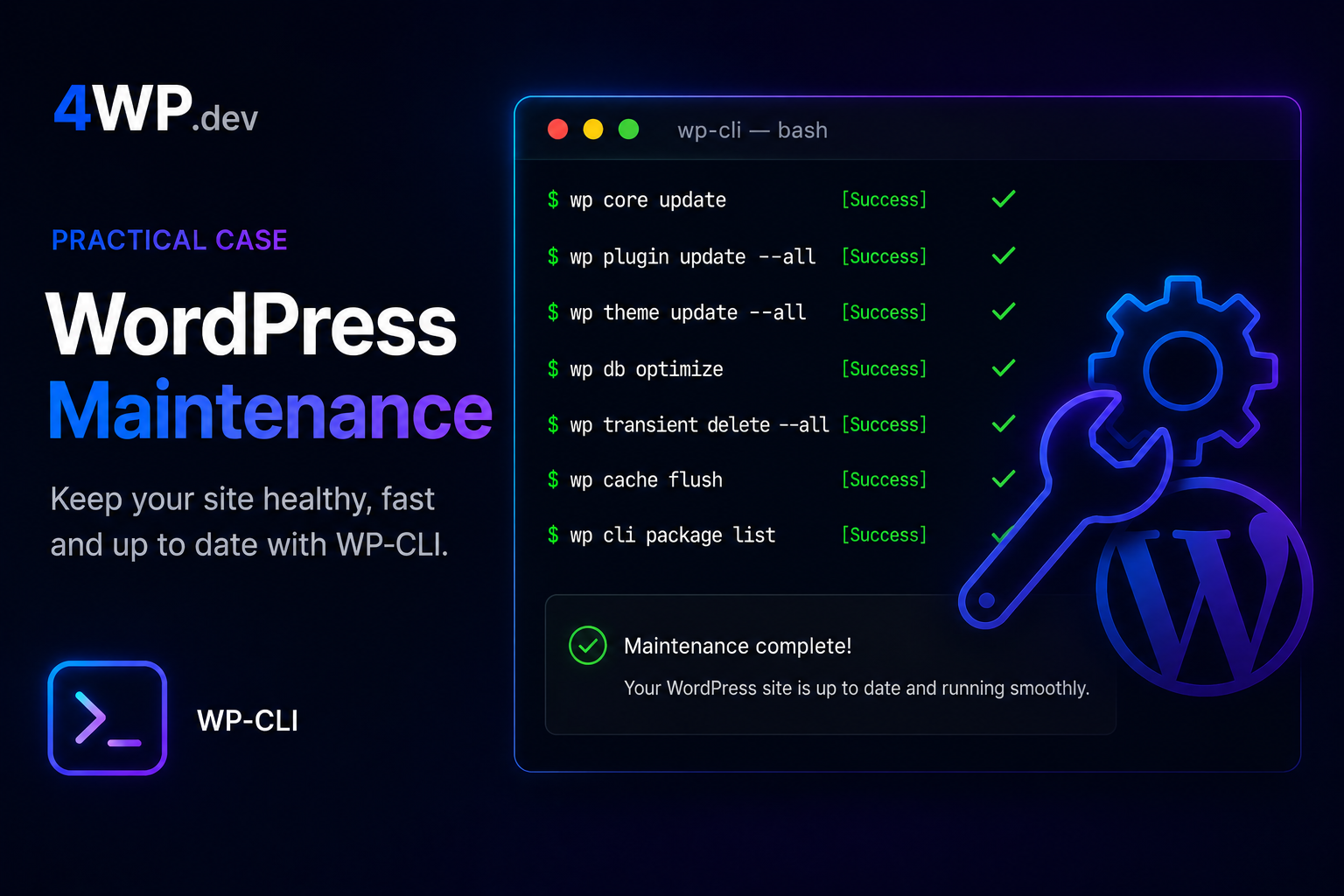
Run a safe WordPress maintenance sequence from the command line — checking for updates, backing up the database, updating core and plugins, and flushing cache in the correct order.
Steps
1. Check for available updates
Before touching anything, see what needs updating. This gives you a clear picture without making any changes.
Returns the current version and available release. Run this first — always know what you’re about to update.
wp core check-update2. Export the database
A database backup is your safety net before any update. If something breaks, you restore from this file.
Writes a .sql dump to the current directory. On production, move the file off-server immediately after export.
wp db export3. Update WordPress core
With a backup in place, update the WordPress core files. WP-CLI puts the site into maintenance mode automatically during the update.
Use –minor in scripts to restrict updates to patch releases only — safer on production.
wp core update4. Update the database schema
Core updates sometimes include database table changes. This step applies any pending schema migrations.
Always run this after wp core update, never before. Schema mismatches cause subtle bugs that are hard to trace.
wp core update-db5. Update all plugins
With core stable and schema up to date, update plugins. WP-CLI enables maintenance mode automatically for each plugin update.
Use –dry-run first on production to preview which plugins will be updated before committing.
wp plugin update --all6. Flush the object cache
After updates, stale cached data can serve old markup or broken asset URLs. Flushing clears everything and forces a fresh load.
This applies to the WordPress object cache (Redis, Memcached, or the default transient store).
wp cache flushCommon mistakes
- Skipping
wp db exportbefore updating — you lose your rollback option if the update breaks something. - Running
wp core update-dbbeforewp core update— schema migrations reference new core tables that do not exist yet. - Updating plugins before core — plugin updates sometimes require a minimum WordPress version; update core first.
- Not flushing cache after updates — stale object cache can serve old data and mask whether the update succeeded.
- Running
wp core check-updateand skipping the rest — checking is not updating; it only reports what is available.
Real cases
Why must I backup the database before updating WordPress?
Updates modify core files and sometimes the database schema. If the update fails or causes incompatibility with a plugin, restoring from a wp db export dump brings the site back to its pre-update state in seconds.
Why is wp core update-db a separate step?
WordPress core updates sometimes include changes to database table structure. wp core update-db applies these schema migrations. Skipping it can cause undefined behavior — WordPress expects a schema version that does not match what is in the database.
Should I update plugins before or after core?
Always update core first. Plugin updates frequently declare a minimum WordPress version requirement. Updating plugins against an outdated core can trigger PHP errors if the plugin expects functions added in the newer core version.
What does wp cache flush actually clear?
It flushes the WordPress object cache — Redis, Memcached, or the built-in transient store, depending on your server setup. It does not clear browser cache or CDN cache. After major updates, also purge your CDN or page cache plugin separately.
Can I use wp core update –minor on production?
Yes, and it is recommended for automated pipelines. The –minor flag restricts updates to the current major branch (e.g. 6.x → 6.x patch), skipping major version jumps.
How do I preview plugin updates before applying them?
Run wp plugin update --all --dry-run. This shows which plugins have updates available and what versions they would move to, without making any changes.
What if wp core update fails midway?
WordPress enters maintenance mode at the start and exits on success. If the update fails, the .maintenance file may remain and lock the site. Delete it with wp maintenance-mode deactivate or remove .maintenance from the root. Then restore from the database export you made in step 2.