
WP-CLI – Command Line Interface for WordPress
WP-CLI is the official command-line tool for WordPress. It lets developers manage installations, plugins, themes, databases, and users directly from the terminal – without touching the admin panel.
No clicking. No waiting. Just commands.
Why Developers Use WP-CLI
The WordPress admin interface works fine for content editors. For developers, it becomes a bottleneck.
WP-CLI is how you:
- Deploy a new WordPress site in seconds
- Update plugins across dozens of installations at once
- Migrate a database between staging and production without breaking serialized data
- Automate repetitive tasks inside CI/CD pipelines
- Reset and reseed local environments during development
If you’re managing more than one WordPress site, or working in a team with automated deployments — WP-CLI is not optional.
Command Reference
WP-CLI commands are organized into groups. Each group covers a specific area of WordPress management.
Core
Install, update, and verify WordPress itself.
Plugins
Install, activate, deactivate, and update plugins — one or many at once.
Themes
Manage themes from the terminal. Install, switch, and update without the admin UI.
Database
Export, import, optimize, and run search-replace on your WordPress database.
Users
Create, update, delete, and manage roles for WordPress users.
Cache
Flush object cache, check cache type, and integrate with hosting-level caching layers.
Profiling
Measure exactly where a WordPress request loses time — bootstrap, main query, or template.
Practice Cases
Real workflows built with WP-CLI commands — not isolated examples, but full sequences that solve actual problems.
-
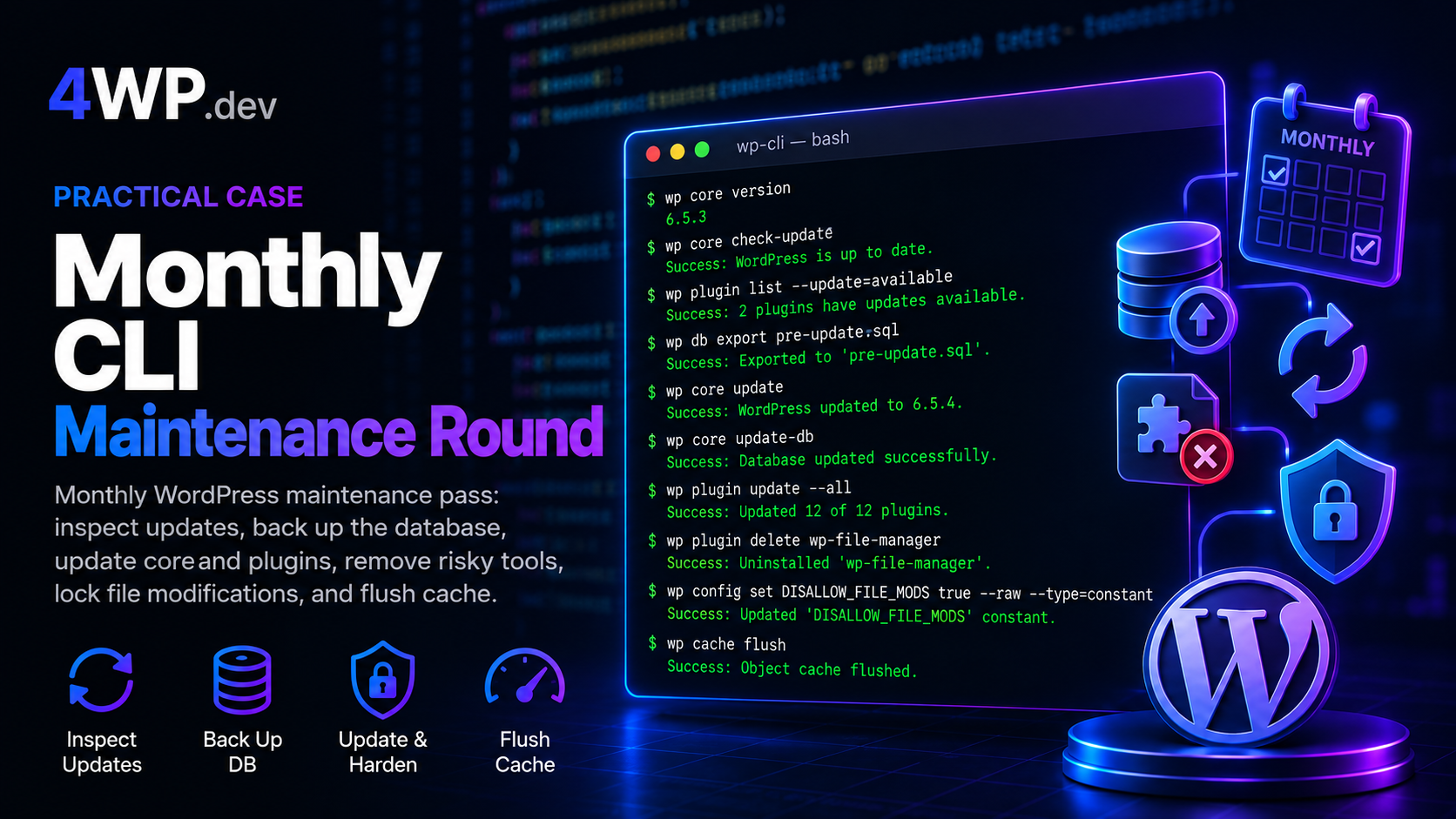
Monthly WP-CLI Maintenance Round
Entry-level monthly pass on a business WordPress site: inspect updates, export the database, update core and plugins, remove a risky File Manager plugin, lock wp-admin installs, flush cache.
-
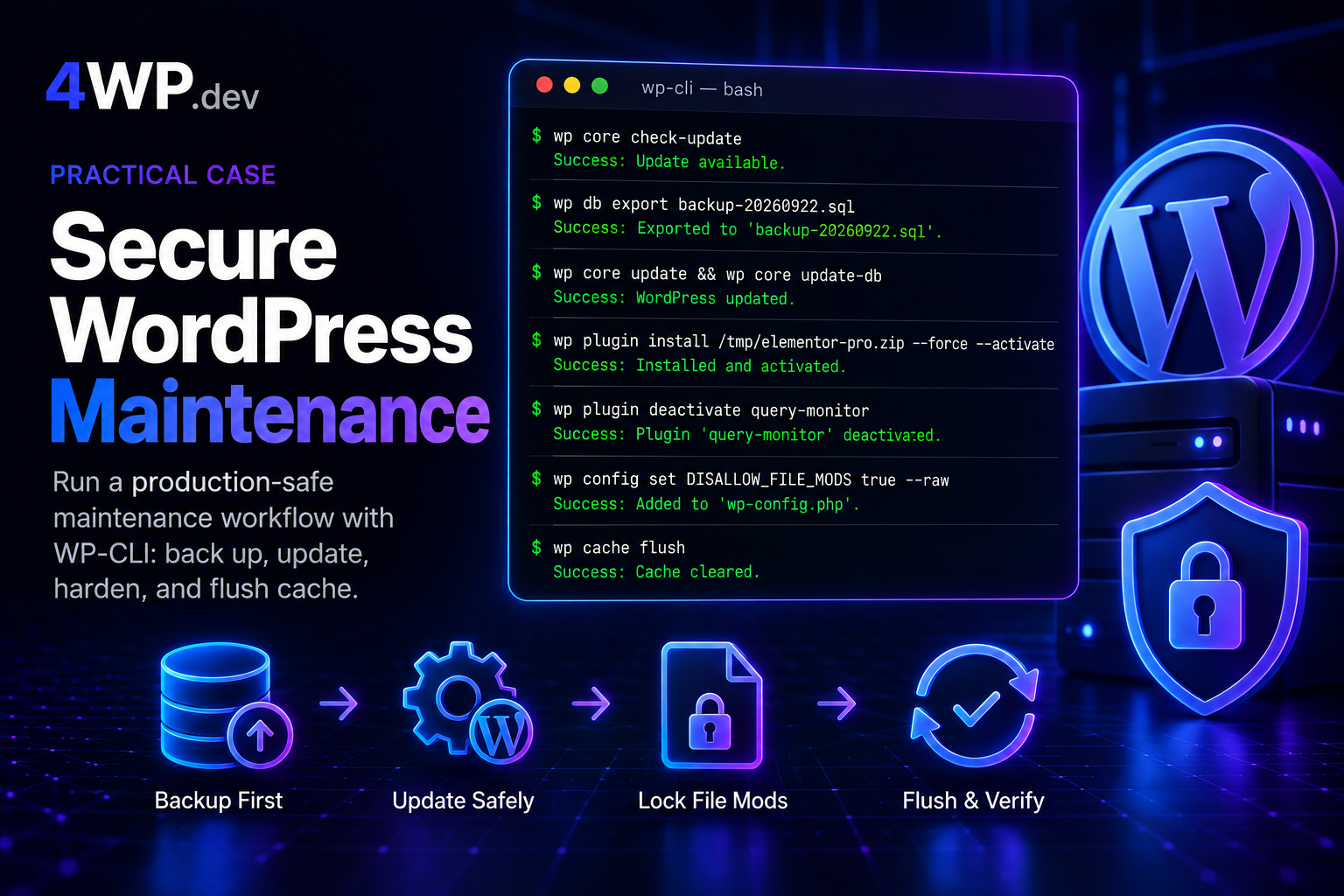
Secure WordPress Maintenance
Run a production-safe maintenance sequence on a live business WordPress site: back up first, update core and plugins, remove risky tools, install a premium plugin from a local package, and lock down file edits from wp-admin.
DISALLOW_FILE_MODS, elementor pro wp-cli, secure wordpress maintenance, wordpress business site maintenance, wordpress cli security, wordpress hardening wp-cli, wordpress premium plugin cli install, wordpress production maintenance cli, wp cache flush, wp config set DISALLOW_FILE_MODS, wp core check-update, wp core update, wp core update-db, wp core version, wp db export, wp plugin deactivate, wp plugin install force activate, wp plugin list, wp plugin update all, wp-cli intermediate practice, wp-cli maintenance, wp-cli practice, wp-cli practice terminal -
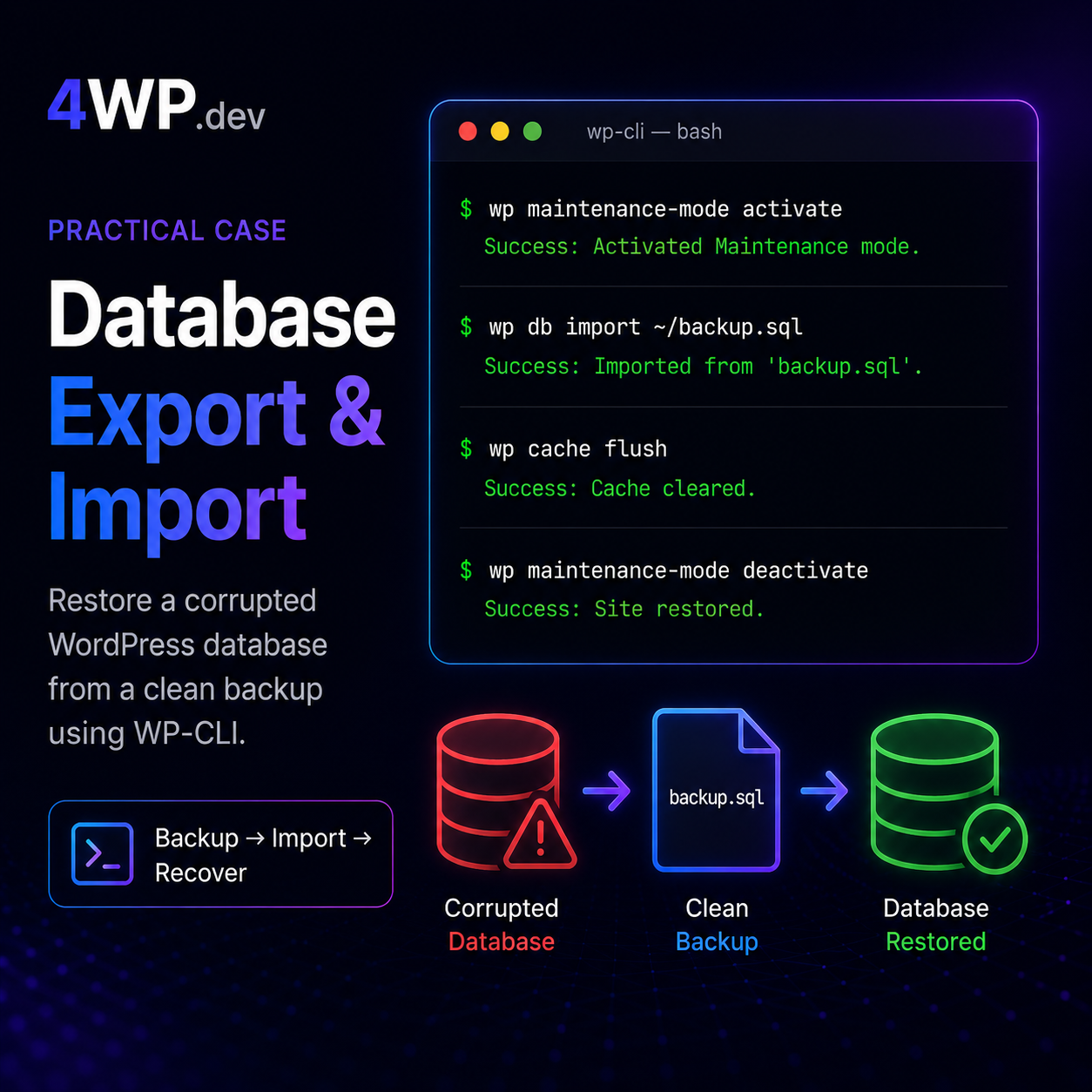
Database Export and Import
A clean database backup exists at ~/backup.sql. The current database has been partially corrupted by a failed plugin update. Restore from backup and bring the site back online.
-
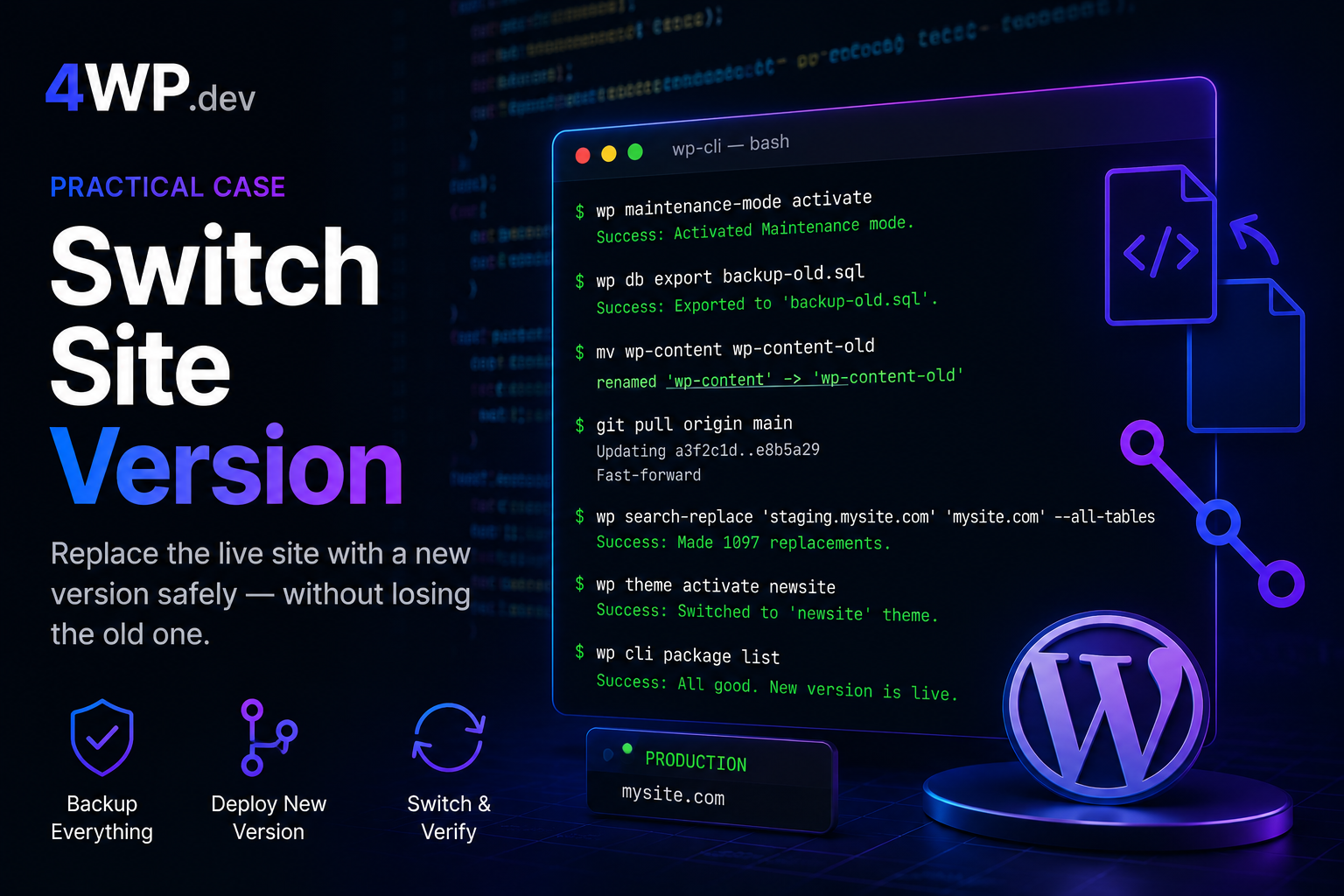
WP-Cli how Switch Site Version – practice case
Old site: premium theme + WPBakery + legacy plugins. New version is ready — on a Git branch or uploaded as an archive. Replace the live site without losing the old one.
-
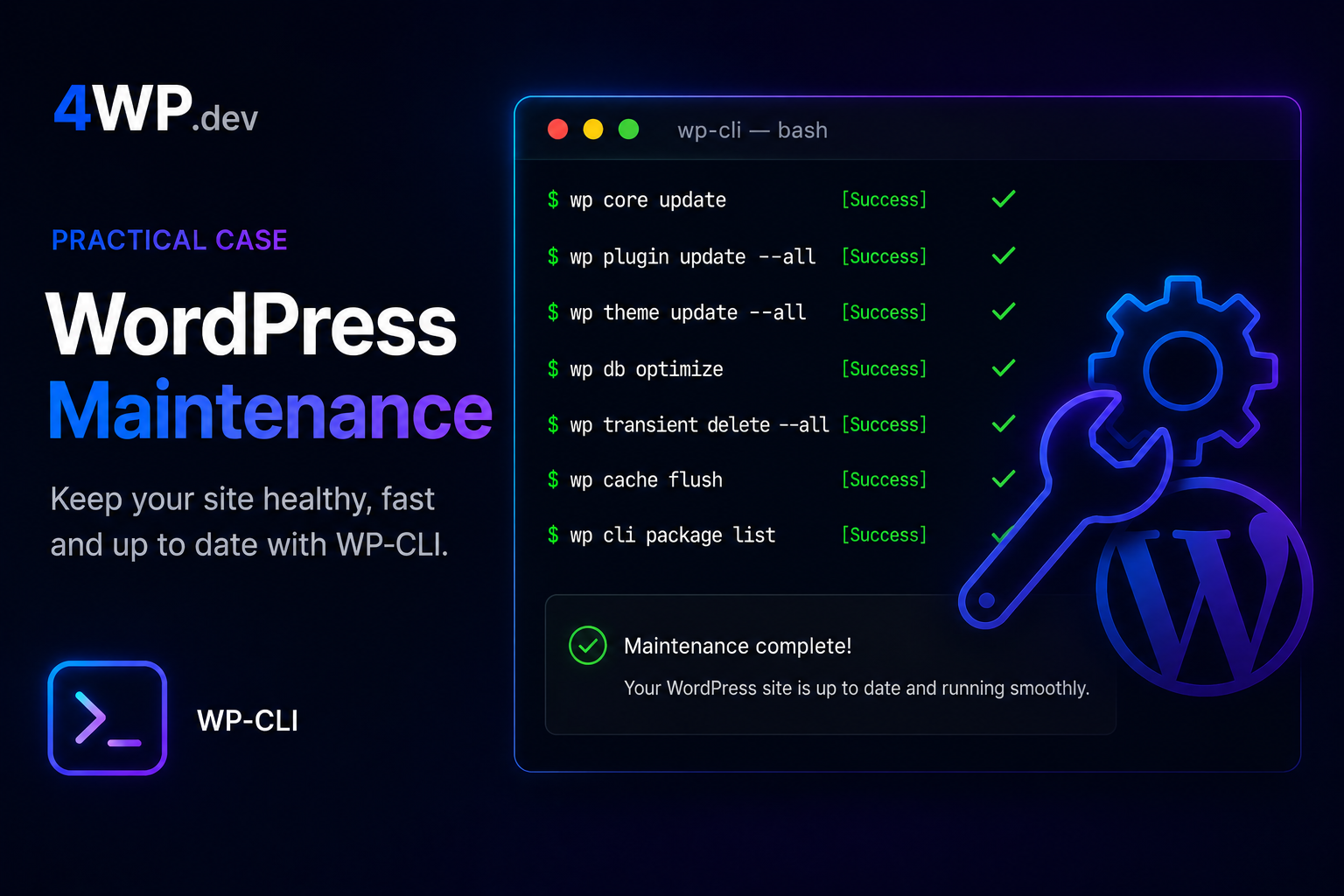
WordPress Maintenance Workflow
Run a safe maintenance sequence on a live WordPress site. Order matters — skipping steps can break production.
-
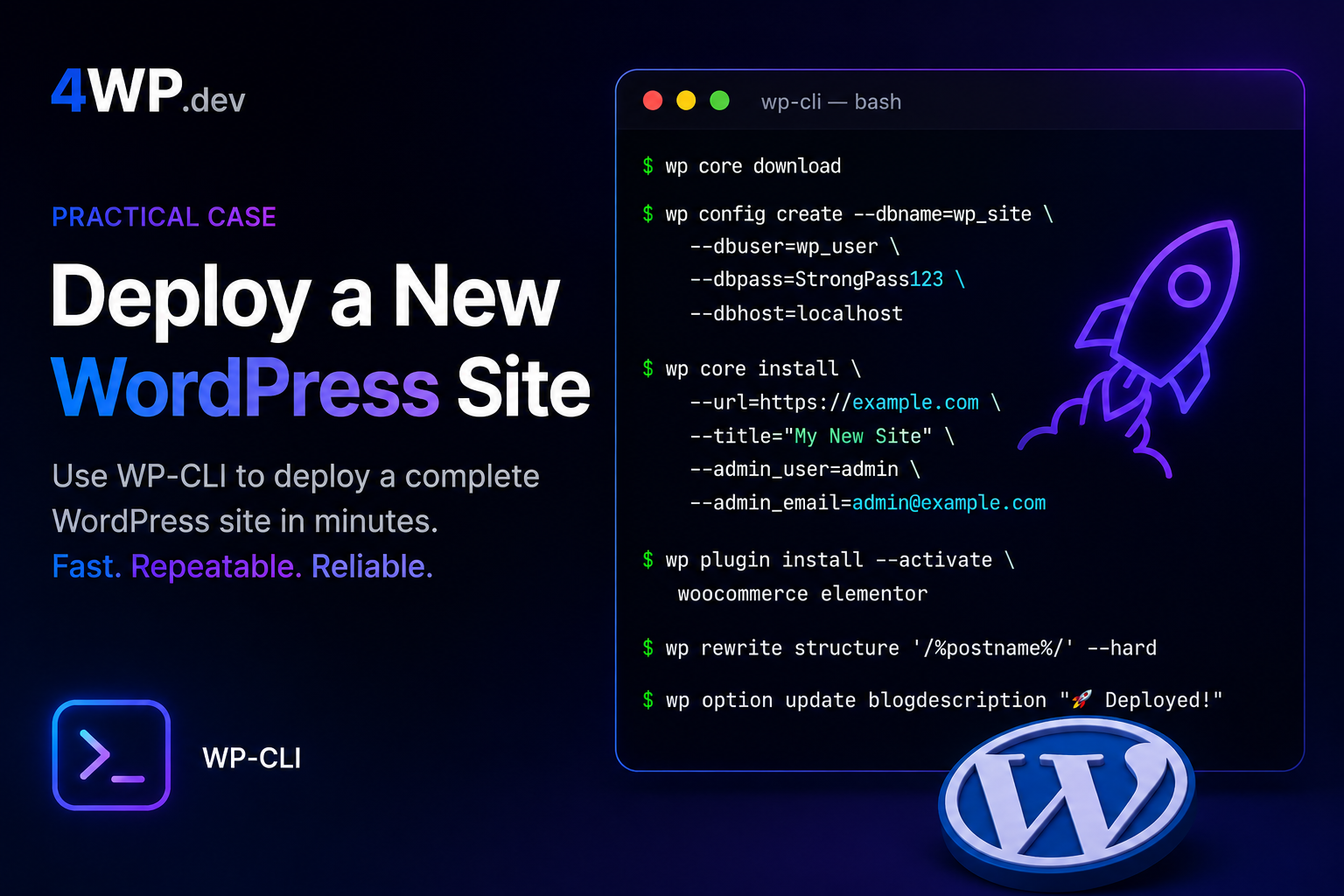
Deploy a New WordPress Site
Complete a full WordPress installation from scratch using WP-CLI. Follow the steps in the correct order — each command builds on the previous one.
→ Browse Practice Cases (coming soon)
Interactive Terminal
Use the terminal above to explore WP-CLI commands. Click any command in the sidebar or type directly — each command shows real output format and a practical tip.
All output is simulated. No WordPress installation required.
wp-cli practice terminal, WP-CLI commands, WP profile stage php