Goal
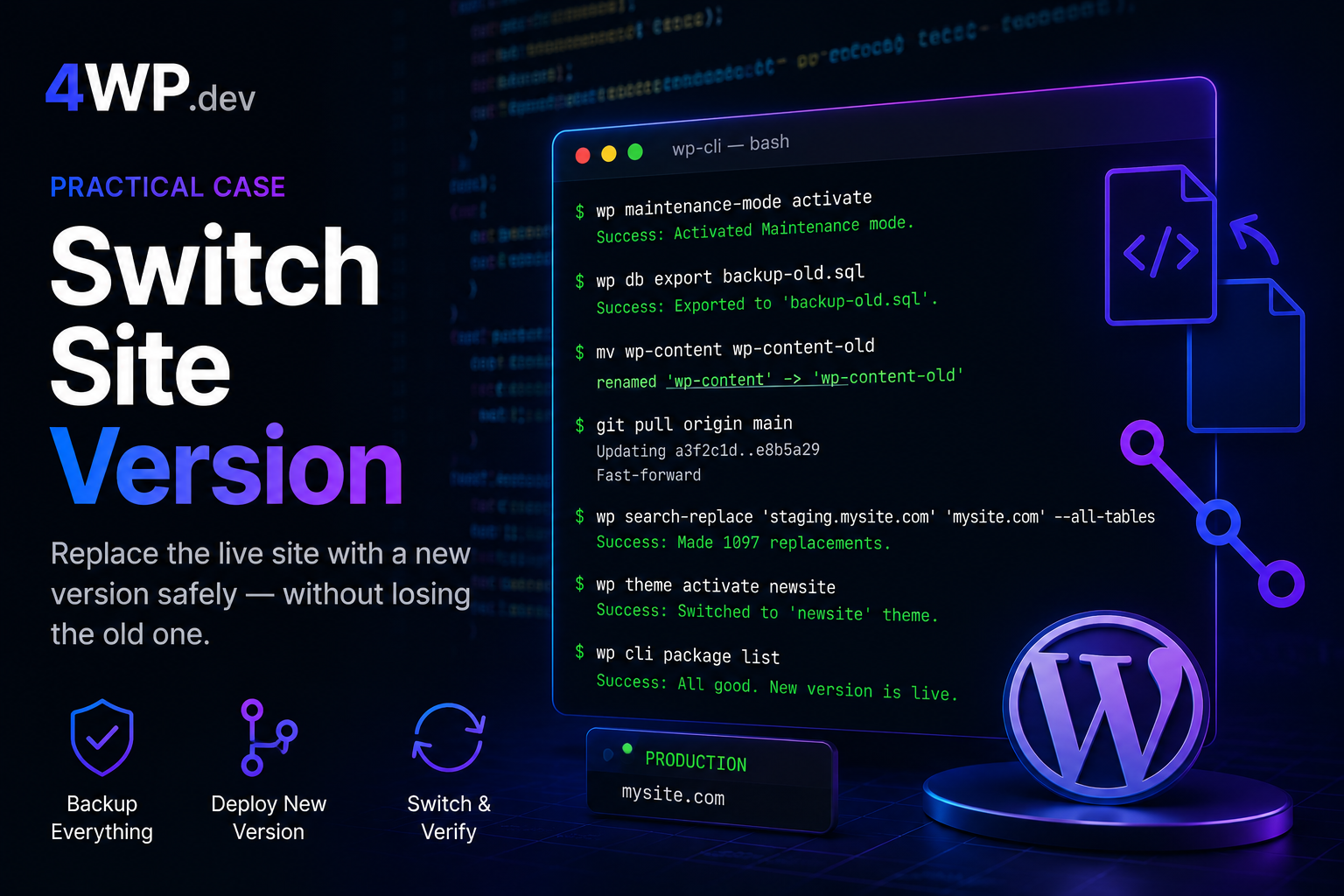
Replace a live WordPress site with a new version — using Git or an uploaded archive — without losing the old site and without exposing visitors to a broken state.
Steps
1. Enable maintenance mode
Before touching any file or database row, put visitors behind a clean holding page. A broken front end during deployment destroys trust — maintenance mode prevents that.
WP-CLI writes a .maintenance file to the WordPress root. Visitors see a default ‘Briefly unavailable for scheduled maintenance’ message until you remove it.
wp maintenance-mode activate2. Export the database
The database is the only part of the old site that cannot be recovered from files alone. Export it before touching anything — this is your rollback if the import or search-replace goes wrong.
Use a timestamped filename on production. Move the dump off the server (S3, backup destination) after export — a backup on the same machine is not a real backup.
wp db export backup-old.sql3. Move old wp-content aside
Never deploy on top of the existing wp-content. Moving it to wp-content-old keeps the old site fully intact and recoverable at any point during or after the deployment.
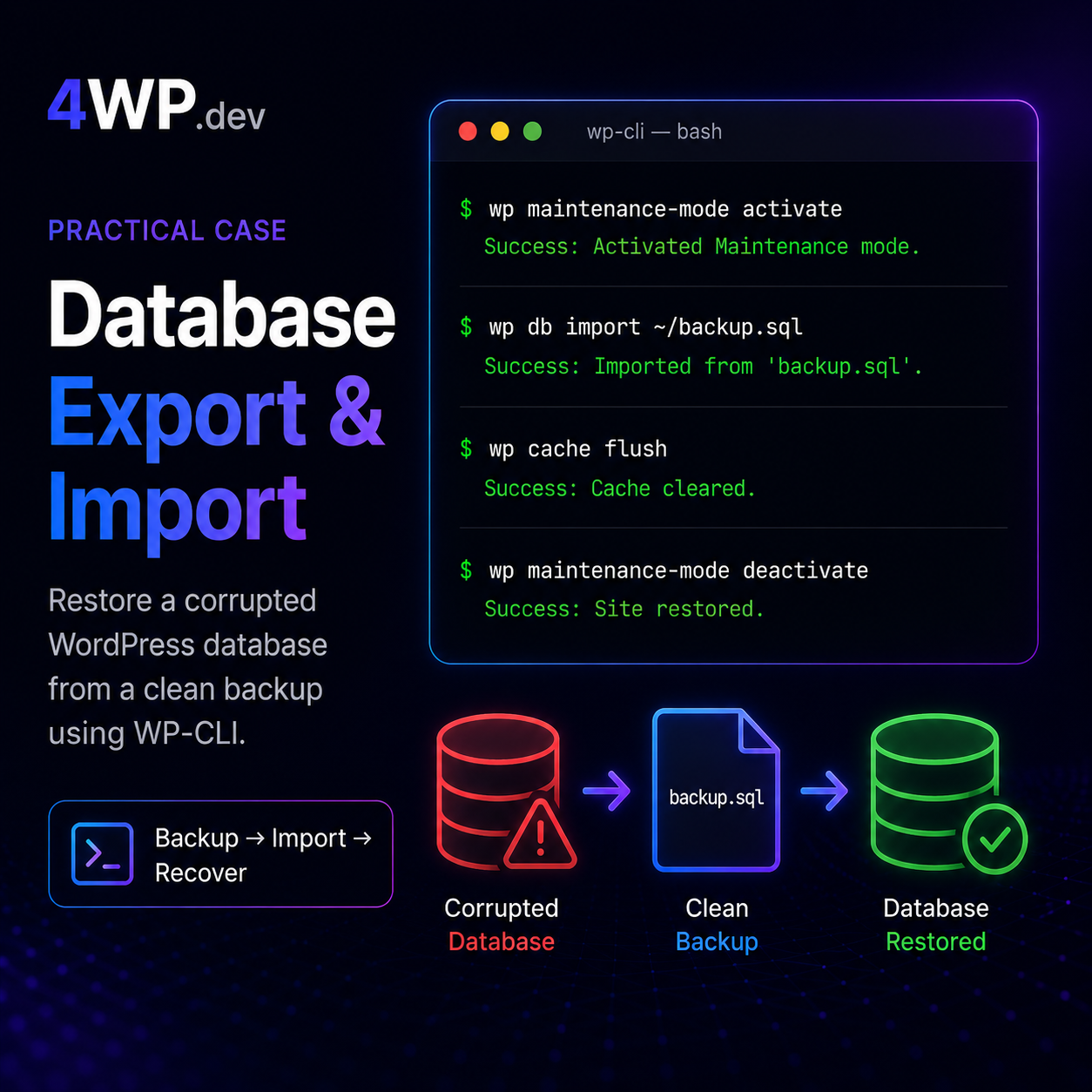
If rollback is needed: mv wp-content wp-content-broken && mv wp-content-old wp-content, then wp db import backup-old.sql. Full restore in two commands.
mv wp-content wp-content-old4. Deploy the new version
If the server has Git, pull the new branch directly. If the new version was uploaded as an archive, extract it into the current directory — either way creates a fresh wp-content.
After this step, the new files are in place and the old site is untouched in wp-content-old.
git pull origin main5. Replace staging URLs in the database
The database was built on staging — every option, post GUID, and serialized URL still points to the staging domain. Search-replace updates all tables in one pass.
Run with –all-tables to catch serialized data in postmeta and options. Always do a –dry-run first on production if you are unsure of the scope.
wp search-replace 'staging.mysite.com' 'mysite.com' --all-tables6. Activate the new theme
The new theme files are on disk but WordPress still serves the old one — the active theme is stored in wp_options. Activate it now.
At this point the old WPBakery shortcodes will stop rendering — that is expected. The new theme handles layout without them.
wp theme activate newsite7. Deactivate legacy plugins
Even though the old plugin files are in wp-content-old (not on the active path), WordPress still has them registered as active in the database. They will throw errors on every request.
Deactivate them explicitly. Then consider wp plugin delete to remove them from the database registry entirely.
wp plugin deactivate js_composer8. Update the database schema
New plugins or a newer WordPress core version may include database table changes. This step applies any pending schema migrations against the current database.
Safe to run even if no schema changes are needed — it checks and exits cleanly.
wp core update-db9. Flush cache and rewrite rules
The new theme registers different custom post types and rewrite rules. Old cached rules cause 404s. Flush both in the same step.
If a page cache plugin is active (WP Rocket, W3TC), purge it too — WP-CLI alone does not reach page-level caches.
wp cache flush && wp rewrite flush10. Disable maintenance mode
All changes are in place. Remove the maintenance lock and let traffic in.
Spot-check the front end, admin, and at least one post before declaring the deployment done.
wp maintenance-mode deactivateCommon mistakes
- Deploying on top of the existing wp-content instead of moving it aside — files from the old and new versions mix and the site is unrecoverable without a backup.
- Forgetting
wp search-replace— every image, internal link, and serialized URL still points to the staging domain after the switch. - Not running
wp core update-dbafter deploying new code — schema mismatches cause subtle admin and plugin bugs. - Leaving maintenance mode on after the deployment — visitors stay locked out indefinitely.
- Running
wp rewrite flushwithoutwp cache flush— stale object cache can override fresh rewrite rules. - Keeping wp-content-old on the server indefinitely — after confirming the new version is stable, schedule its removal to free disk space.
Real cases
Why move wp-content instead of deleting it?
Moving preserves the entire old site — themes, plugins, uploads — at a known path. If anything in the new version is broken, you can restore in two commands: mv wp-content wp-content-broken && mv wp-content-old wp-content, then import the database backup. Deleting removes that option.
Do I need Git on the server to run this workflow?
No. Step 4 accepts both git pull and tar -xzf. If the server has Git, pull the branch. If not, upload a tar archive via SFTP and extract it. All other steps are identical.
Why run wp search-replace before activating the new theme?
The active theme reads options and postmeta on activation. If those still contain staging URLs, the theme may write them into new records. Fixing URLs first means the theme starts with clean data.
What if wp plugin deactivate fails because the plugin files are missing?
If the plugin files are in wp-content-old (not on the active path), WP-CLI may error. Use wp plugin deactivate js_composer --skip-plugins to bypass the missing-file check, or update the active_plugins option directly with wp option get active_plugins and wp option update.
Is wp cache flush enough after a theme switch?
For the WordPress object cache, yes. But it does not clear page-level caches (WP Rocket, W3 Total Cache, Varnish, or CDN edge). After the deployment, also purge those separately — otherwise visitors may see the old theme from cache for hours.
When is it safe to delete wp-content-old?
After at least one week of stable production traffic. Bugs in a new deployment often surface days later — broken checkout flows, edge-case 404s, plugin conflicts. Keep the backup directory on the server until you are confident, then remove it and move the database dump off-server.