Goal
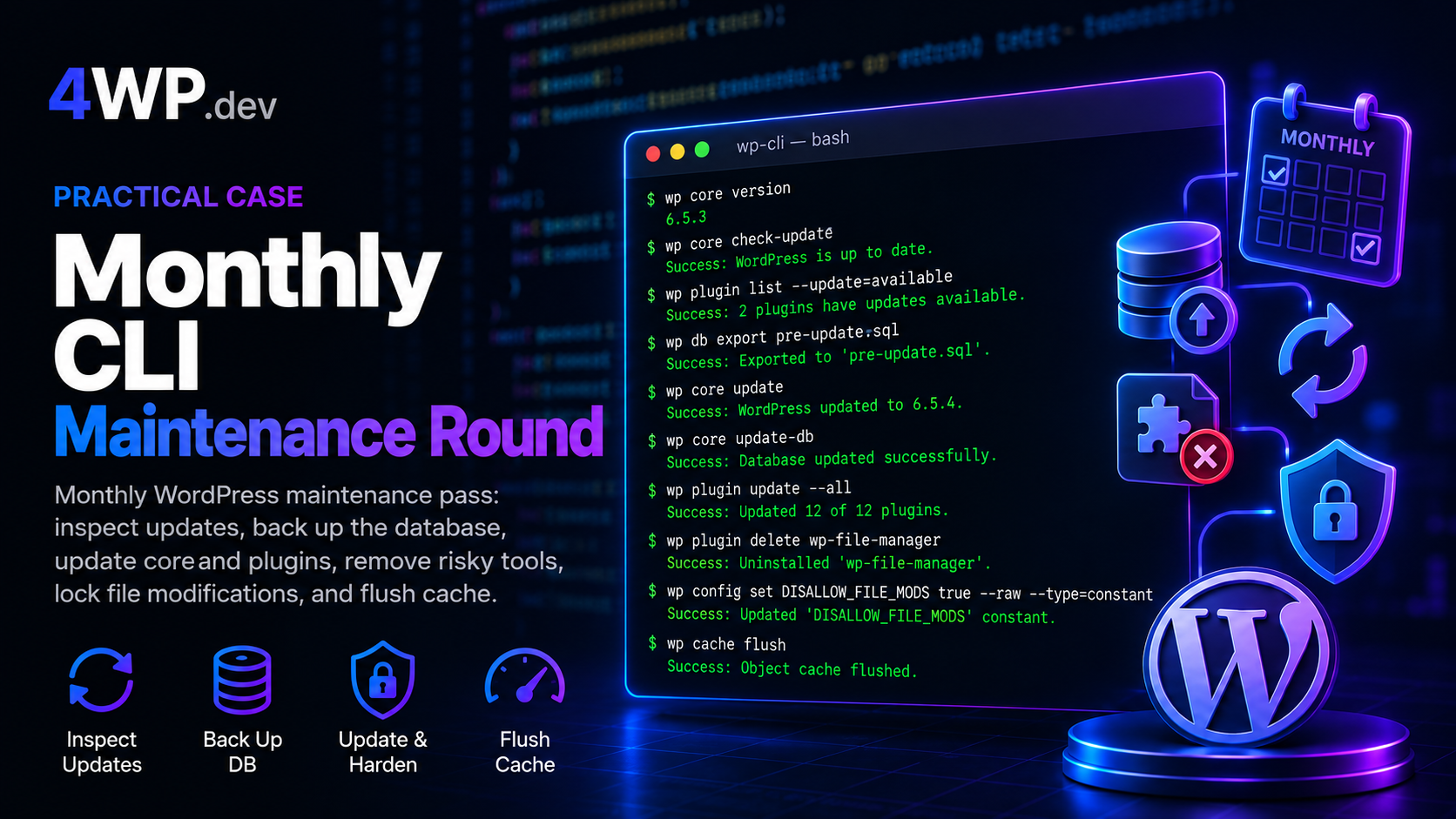
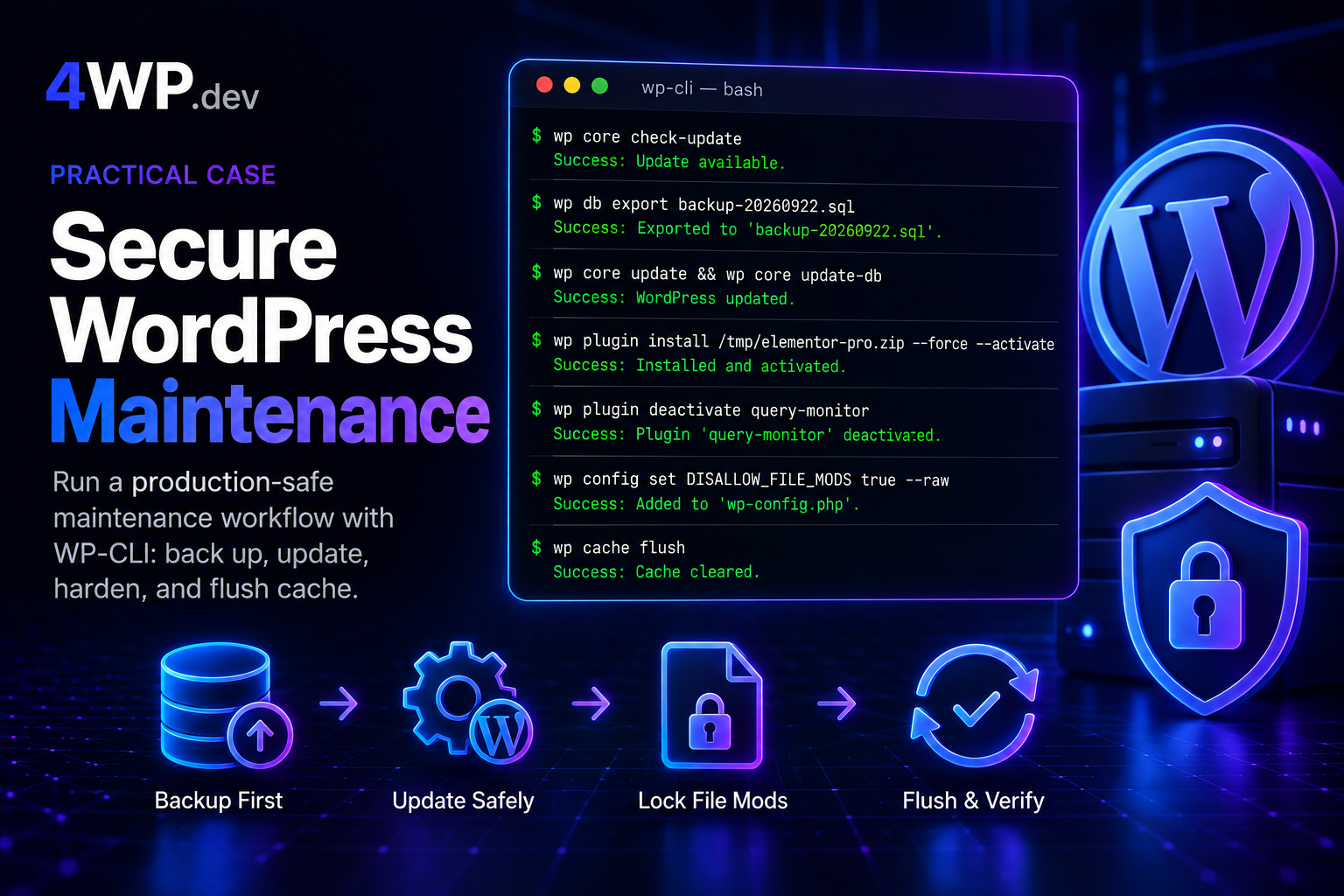
Complete a production-safe WordPress maintenance workflow with WP-CLI: verify core version, back up the database before changes, update core and schema, update plugins, replace a premium plugin from a local zip, deactivate unsafe production tooling, lock down wp-admin file mods, take a post-change backup, and flush cache.
Steps
1. Confirm the current core version
Always establish a baseline before maintenance. Knowing the exact core version helps you confirm the update succeeded and makes post-mortems easier if something fails.
wp core version reads the installed WordPress release from the codebase — no admin login required.
wp core version2. Check for available core updates
wp core check-update reports whether a newer release exists and what type it is (minor vs major). Checking is not updating — it only informs the next steps.
On production, prefer minor/patch updates unless you have a staged major-upgrade plan.
wp core check-update3. Export the database before any changes
A database export is the minimum rollback tool for WordPress maintenance. If an update breaks the site, you restore from this dump.
Name the file with a date. Keep it outside the public web root when you work on real servers. File archives (tar of wp-content) are complementary — this challenge focuses on the WP-CLI path.
wp db export backup-$(date +%Y%m%d).sql4. Update WordPress core
With a backup in place, update core files. WP-CLI handles download and replacement; maintenance mode is used during the process.
Use –minor in automated pipelines to avoid unexpected major jumps.
wp core update5. Update the database schema
Core updates may ship schema changes. wp core update-db applies them. Skip this step and you risk subtle admin or frontend bugs.
Always run update-db after core update, never before.
wp core update-db6. List plugins
wp plugin list shows status, versions, and available updates. Read it before bulk updates so you know which premium or abandoned plugins may need special handling.
wp plugin list7. Update all repository plugins
wp plugin update –all updates everything WordPress.org (or licensed endpoints) can serve. Premium plugins often fail with Unauthorized when the license download cannot be fetched from CLI.
That failure is a signal to install from a verified local package — not to skip the plugin.
wp plugin update --all8. Install a premium plugin from a local zip
Upload the vendor zip to the server (scp), then install with –force to replace the current copy and –activate to keep the site working.
This is the standard pattern for Elementor Pro, ACF PRO, and similar licensed plugins on production.
wp plugin install /tmp/elementor-pro.zip --force --activate9. Deactivate production-unsafe tooling
Development plugins such as Query Monitor should not stay active on live business sites. Deactivate them as part of maintenance.
Reducing attack surface and noise is part of secure operations — not only patching versions.
wp plugin deactivate query-monitor10. Disallow file mods from wp-admin
DISALLOW_FILE_MODS blocks plugin/theme install and update UI in the dashboard. Production changes then go through SSH and WP-CLI — auditable and harder to abuse after a compromised admin account.
Set it with wp config set so the constant lands in wp-config.php correctly.
wp config set DISALLOW_FILE_MODS true --raw11. Export a post-maintenance database backup
The pre-update dump is history. After successful changes, export again so your latest restore point matches the hardened site.
On real servers, also refresh the files archive outside the web root.
wp db export post-maintenance.sql12. Flush the object cache
Stale object cache can serve old options, menus, or plugin state after updates. Flush before you declare the job done.
Page cache / CDN may need a separate purge depending on the stack.
wp cache flushCommon mistakes
- Updating core or plugins before
wp db export— you lose a clean rollback if the update fails. - Skipping
wp core update-dbafterwp core update— schema and code versions diverge. - Assuming
wp plugin update --allcovers premium plugins — licensed downloads often return Unauthorized from CLI. - Leaving Query Monitor (or similar) active on production — leaks debug data and adds unnecessary load.
- Relying only on the wp-admin Updates screen — a compromised admin can install malware;
DISALLOW_FILE_MODSreduces that path. - Keeping only the pre-update backup — after success you need a new export that reflects the current site.
- Forgetting
wp cache flush— visitors and admins may still see stale behavior after a successful update.
Real cases
Why is this challenge intermediate if maintenance already exists?
The beginner maintenance case covers the happy path: check, export, update core, update plugins, flush cache. This case adds production security habits: plugin inventory, premium zip installs, deactivating unsafe tooling, locking wp-admin file mods, and a post-change backup.
Why does elementor-pro fail with Unauthorized?
Many premium plugins authenticate downloads against the vendor API using a license tied to the site. WP-CLI bulk update may not complete that handshake. Installing a verified zip with wp plugin install … --force --activate is the reliable production pattern.
What does DISALLOW_FILE_MODS actually block?
It disables plugin and theme install/update (and related file editing) from the WordPress admin UI. Updates then happen via WP-CLI or controlled deploy pipelines — which is what you want on production business sites.
Should I also back up files, not only the database?
Yes on real servers. Use a dated directory outside the web root for tar archives of the site plus wp db export. This interactive challenge focuses on WP-CLI commands; file archives remain part of the full protocol.
In which order should I update core and plugins?
Core first, then wp core update-db, then plugins. Plugins often require a minimum WordPress version; updating them against outdated core can cause fatals.
Do I need –allow-root?
Only when you run WP-CLI as root (common on some VPS setups). Prefer a dedicated deploy user that owns the site files. This simulator accepts the commands without –allow-root.